Your laptop starts choking on everyday programs, Photoshop crashes, and opening a few browser tabs takes forever? Often a simple RAM upgrade is enough to get your machine running smoothly again. At Apenfix we check this first during a free inspection, and the upgrade itself usually takes 1–3 working days.
In short: if your laptop is slowing down and the RAM is almost fully used, adding more RAM is one of the most cost-effective upgrades you can make. At Apenfix, we first check the actual memory usage, and only then suggest an upgrade — so you don’t end up adding a component your laptop doesn’t actually need.
Our experience in RAM upgrades
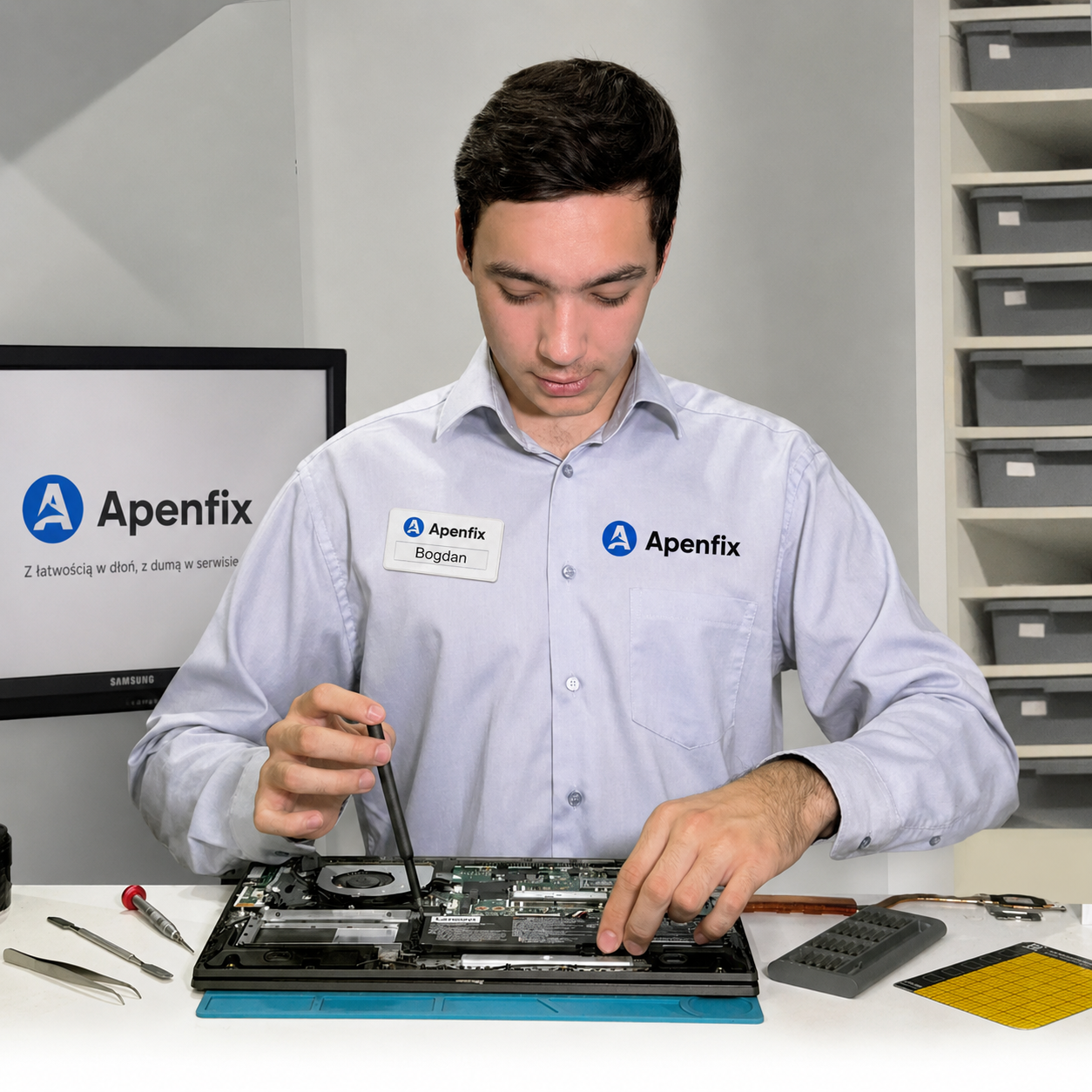
We upgrade RAM in laptops of various brands — from popular office models to machines for graphic work and gaming. We work at stations with anti-static mats and grounding, so electronic components stay safe throughout the entire service. Before installation, we check memory compatibility with the motherboard and processor, and after the upgrade we test system stability under load to make sure your laptop actually runs faster.
How to check if your laptop needs more RAM
Before you decide to upgrade, it’s worth checking whether RAM is actually the bottleneck. You can do this in a few seconds, without any additional programs:
- Press Ctrl + Shift + Esc simultaneously — this will open Task Manager.
- Go to the Memory tab (Performance → Memory) and look at the usage graph.
- If you have, say, 8 GB of memory and 7.9 out of 8 GB is being used — nearly 100% during everyday use — adding more RAM will almost certainly help.
- However, if you have 8 GB with only 4 GB used (or 16 GB with 10 GB used), your memory reserve is sufficient — upgrading RAM is unlikely to speed up your laptop, and the causes of slowdown should be looked for elsewhere, most often in the drive.
This simple test shows the difference between a laptop that genuinely needs more memory and one that has a different problem — such as a slow drive or a dirty cooling system. That’s why we always start with a free inspection (5–15 minutes), so we only suggest an upgrade when it will actually make a difference.
When you need help with RAM
Our service centre receives clients searching for answers to questions like: „how to add RAM to a laptop”, „laptop running slow, how much RAM do I need”, „Photoshop keeps freezing, what should I do” or „is it worth upgrading RAM in an older laptop”. If any of these questions sound familiar, you’re in the right place.
Signs that indicate it’s time to upgrade your RAM
- Programs like Photoshop, Premiere or CAD packages freeze or shut down on their own
- Switching between several open applications takes noticeably long
- Opening programs that used to start quickly now takes many seconds
- Games stutter or „lag”, even though the graphics card should handle them
- The laptop has only 8 GB of RAM, and you use it for graphics, video work or many browser tabs at once
Before we add memory, we always check the client’s Task Manager. Sometimes the laptop has spare RAM, but something completely different is slowing it down — usually the drive. RAM upgrade makes sense only when it will actually solve the problem, not just add a component.
Apenfix technician
What happens if you delay the RAM upgrade
- The laptop will become noticeably slower in everyday work
- Risk of data loss when programs freeze while working on files increases
- Frustration and time wasted on simple tasks accumulate day by day
- It may turn out that the culprit is the drive, not RAM — the longer you wait, the greater the risk of its failure
How RAM upgrade works at our service centre
1. Free inspection
We check actual memory usage in Task Manager and assess whether RAM upgrade will actually help. This takes 5–15 minutes.
2. Memory selection
We select RAM modules compatible with your laptop’s motherboard and processor, matched to your budget.
3. Installation
We work at a grounded workstation with an anti-static mat to keep components safe throughout the entire procedure.
4. Stability test
We check system stability under load, and you confirm at collection that the laptop runs faster.
Repair time may vary depending on component availability and service workload.
RAM upgrade — we serve all of Warsaw
We accept laptops for RAM upgrades from customers in every district of Warsaw — Śródmieście, Wola, Mokotów, Ochota, Żoliborz, Bemowo, Bielany, Ursynów, Praga-Południe, Praga-Północ, Targówek, Białołęka, Wawer, Włochy, Ursus, Wilanów, Rembertów and Wesoła — as well as from the surrounding areas.
We have more than one location in convenient parts of Warsaw, so getting to us is quick and easy wherever you live or work. Our current service point addresses are listed further down this page.
Why Apenfix
Frequently asked questions
How do I know how much RAM I need?
Check current usage in Task Manager (Ctrl + Shift + Esc). If memory is almost fully utilised, it’s worth upgrading. For 2026–2029, a comfortable amount is around 16 GB, with 8 GB being the minimum.
Can every laptop be upgraded with RAM?
Not every one — in some newer, thin models, the memory is soldered to the motherboard and a physical upgrade isn’t possible. We check this during the free inspection and tell you straight whether adding RAM is an option.
Will a RAM upgrade actually speed up my laptop?
Yes, if memory was genuinely the bottleneck. However, if the laptop has spare RAM and still runs slowly, the cause is usually something else, most often the drive — we check that during the inspection as well.
How long does a RAM upgrade take?
Usually 1–3 working days, depending on the availability of suitable memory modules for your laptop model.
Do I keep the old RAM?
If we’re adding an extra module, the old memory stays in the laptop and works together with the new one. If we’re replacing everything with higher capacity, we return the old modules to the customer.
The exact cost of a RAM upgrade depends on your laptop model and the chosen memory capacity. You’ll find current prices in the price list.
Two service points in Warsaw
Visit whichever of our two locations is more convenient for you.
Location 1 — Wolska
Wolska 50A/Lokal 26
01-187 Warszawa
Location 2 — al. Szucha
al. Jana Chrystiana Szucha 1
00-580 Warszawa
See also
- Laptop upgrade — RAM and SSD together
- How much RAM does a laptop need in 2026
- Drive replacement in Dell laptops
- HP laptop diagnostics