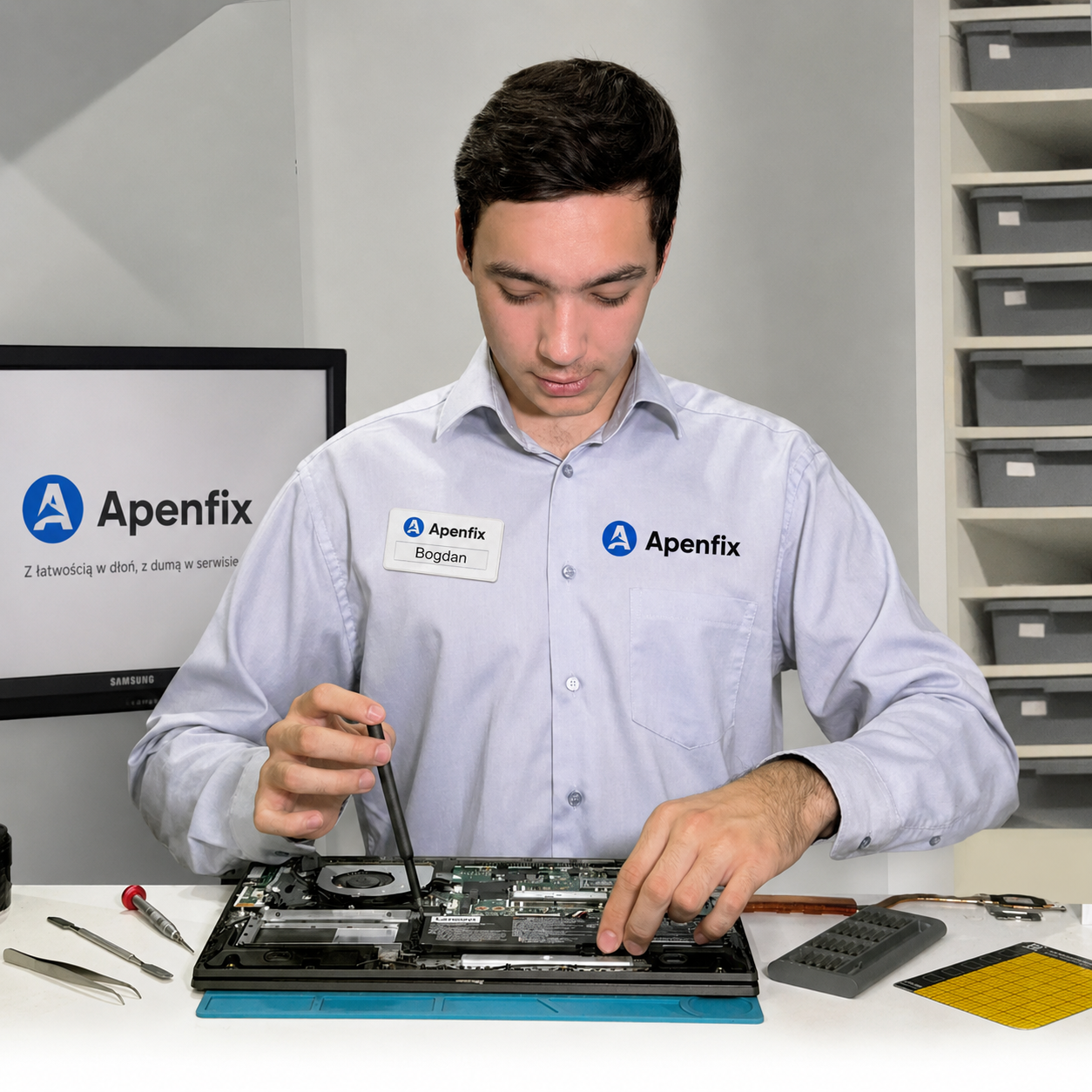
You’re replacing your drive with a new, faster model, but you don’t want to reinstall the operating system, programs, and settings you’ve been configuring for years? Data transfer to a new drive lets you keep everything exactly as it was — including the operating system and installed programs, without having to reinstall anything. We check the scope and feasibility of the transfer during a free inspection (5–15 minutes).
In short: with a small amount of data, the transfer is free, and when done together with a drive replacement, it always works out cheaper than ordering it separately on another occasion.
Our experience
We clone the entire operating system along with installed programs and settings onto the new drive, so that after the replacement, the laptop starts up exactly as before — without the need to reinstall Windows, drivers, or applications. We use professional cloning tools that handle transfers between HDD and SSD drives, as well as partition resizing when the new drive has a different capacity than the old one.
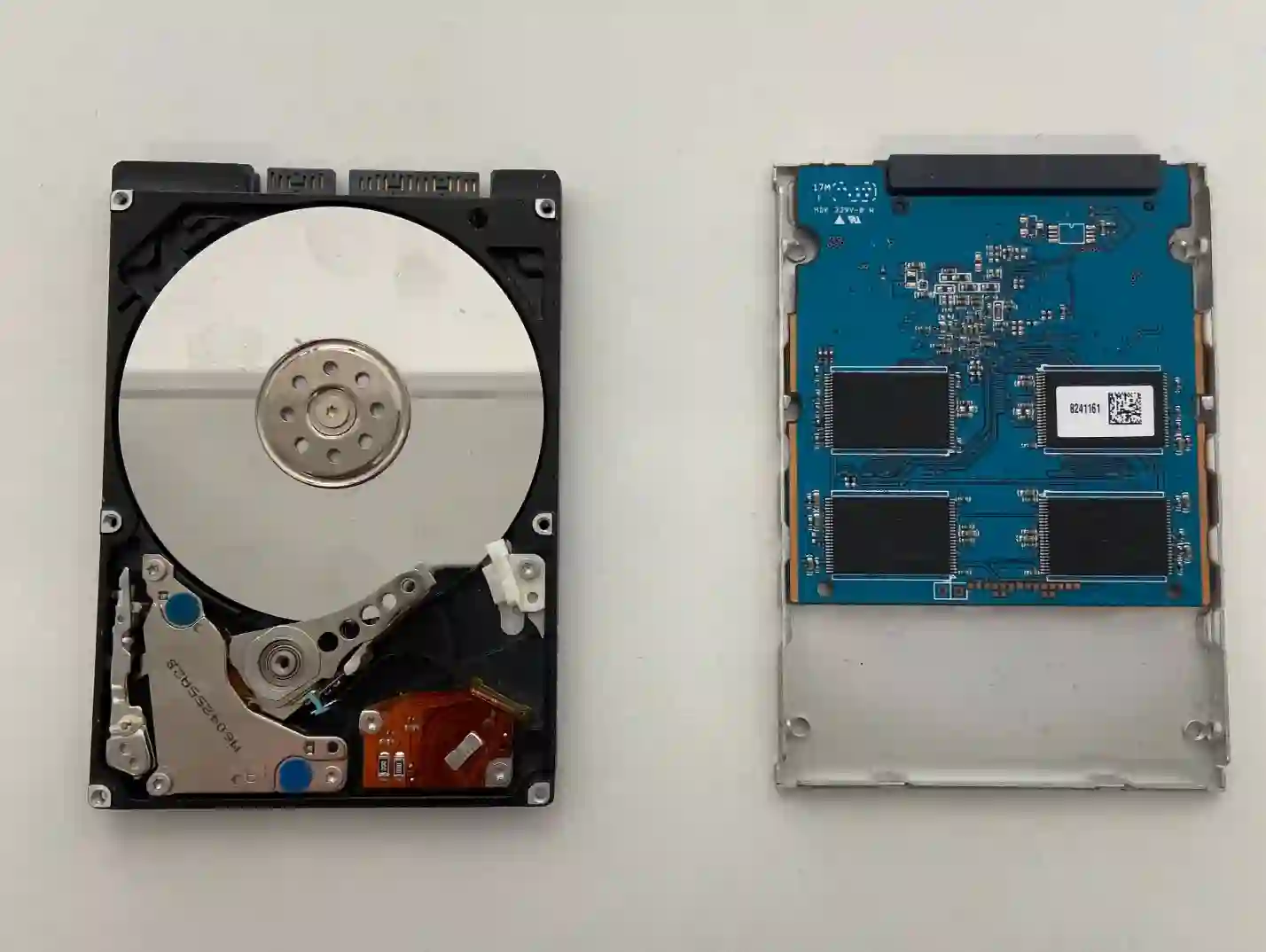
When it’s worth doing together with a drive replacement
If you’re replacing the drive anyway — whether due to its failure or to increase your laptop’s speed — having the data transfer done at the same time is more convenient and cheaper than ordering it separately at another time. There’s no need to open the casing twice or test the system’s performance twice.
When you’re looking for data transfer
Most often, we see clients who have bought a new, larger, or faster drive and want to transfer their entire existing system without losing settings, or clients replacing a damaged drive who want to keep all their installed programs.
When it’s worth using this service
- You want to keep the system, programs, and settings exactly as they are now.
- You’re replacing the drive due to its failure and want to transfer what can still be read.
- You’ve bought a new, faster SSD and want to use it without reinstalling the system.
- You have many licensed programs whose reinstallation and configuration would take a lot of time.
If there’s only a small amount of data to transfer, we do it free of charge as part of the drive replacement. This is one of those services that really pays to order together with the replacement, rather than separately — it saves both time and money.
Apenfix technician
What happens if you delay
If an old drive starts failing and you postpone transferring the data, you risk parts of the data becoming unreadable before you manage to copy it. With a healthy drive there’s no rush, but at any sign of impending failure it’s worth acting as quickly as possible.
How data transfer works at our service centre
1. Assessment of the old drive’s condition
We check whether the source drive is fully readable or has damaged sectors.
2. System cloning
We clone the entire operating system along with programs and settings onto the new drive.
3. Installing the new drive
We install the new drive in the laptop in place of the previous one.
4. Boot test
We check that the system boots correctly and that all programs work as before.
Extended diagnostics, if needed, takes 1–3 working days. It’s free if you decide to go ahead with the repair — if you decline, its cost is agreed and quoted upfront.
Data transfer to a new drive — we serve all of Warsaw
We carry out data transfer to a new drive for customers from every district of Warsaw — Śródmieście, Wola, Mokotów, Ochota, Żoliborz, Bemowo, Bielany, Ursynów, Praga-Południe, Praga-Północ, Targówek, Białołęka, Wawer, Włochy, Ursus, Wilanów, Rembertów and Wesoła — as well as from the surrounding areas.
We have more than one location in convenient parts of Warsaw, so getting to us is quick and easy wherever you live or work. Our current service point addresses are listed further down this page.
Why Apenfix
Frequently asked questions
Is data transfer always free of charge?
It’s free when there’s a small amount of data — with larger volumes, the cost is determined individually, but it always works out cheaper when done together with a disk replacement.
Will I need to reactivate Windows after the transfer?
Usually not, the activation transfers along with the system — we check this during testing after the cloning is complete.
What if the old disk is already damaged?
We try to transfer as much data as can be read — the extent depends on the degree of disk damage.
Can I change to a larger disk?
Yes, cloning also includes adjusting the partitions to the new, larger disk capacity.
How long does data transfer take?
Usually 1–3 working days, depending on the amount of data and the condition of both disks.
The cost depends on the amount of data — with a small amount, the service is free as part of the disk replacement. You’ll find current rates in the price list.
Two service points in Warsaw
Visit whichever of our two locations is more convenient for you.
Location 1 — Wolska
Wolska 50A/Lokal 26
01-187 Warszawa
Location 2 — al. Szucha
al. Jana Chrystiana Szucha 1
00-580 Warszawa
See also
- Laptop slowing down and freezing
- Laptop not detecting disk
- Data disappeared from laptop
- Dell laptop repair