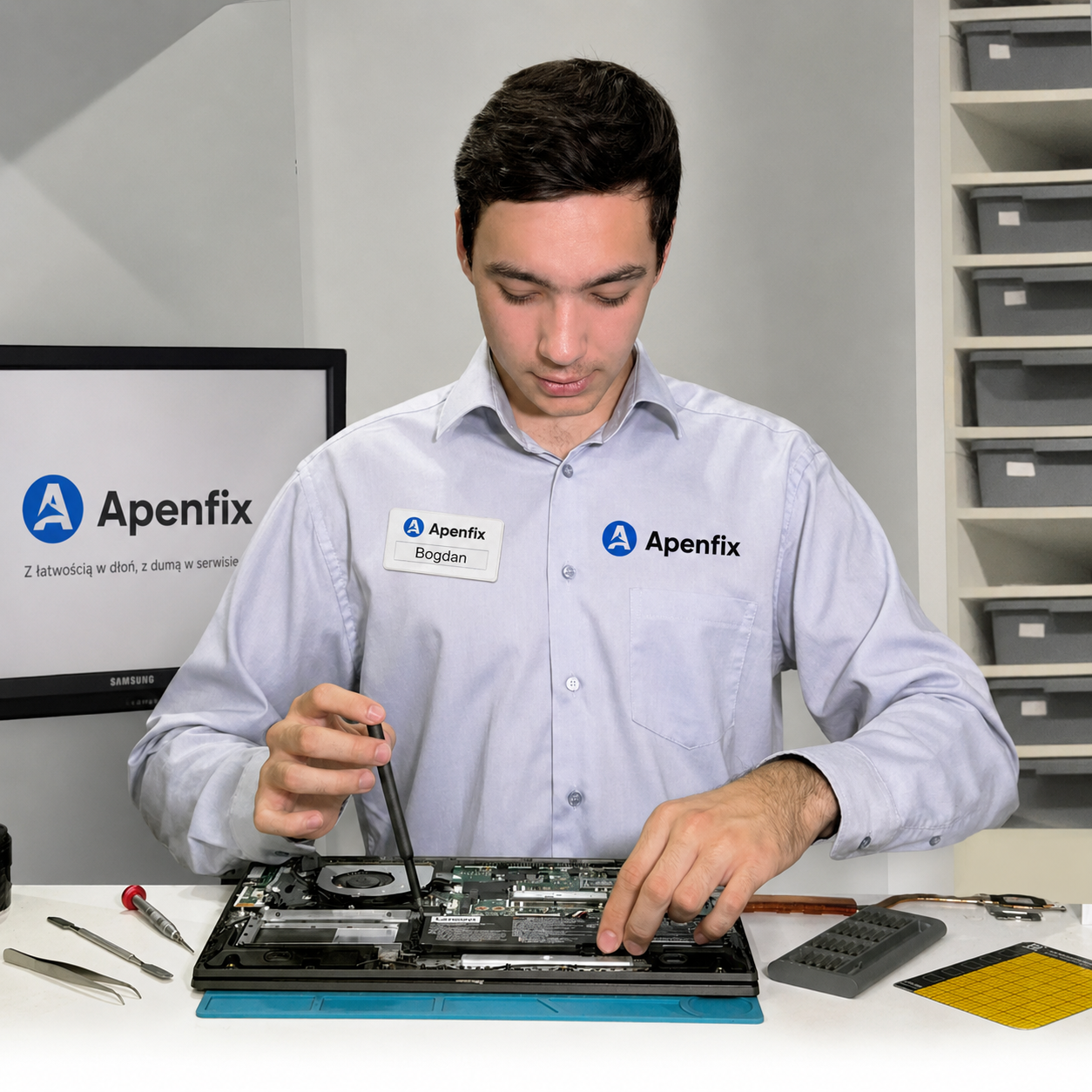
Everything was working normally, and then a Windows 11 update came — and the laptop started freezing, lagging, or stopped starting up altogether. This is one of the most common moments when laptops come to us. We’ll tell you straight away what to expect, instead of promising something that usually can’t be delivered. We’ll check your case during a free inspection in 5–15 minutes.
In short: fixing problems after an update without a full system reinstallation very rarely works. In the vast majority of cases, it’s faster and cheaper to simply install Windows from scratch than to spend several days trying to repair a damaged update.
Why 'in-place’ repair rarely works
Windows 11 updates can damage system files, drivers, or the links between them in ways that are difficult to predict and even harder to fix selectively. You can try rolling back the update, repairing system files with built-in Windows tools, looking for the specific culprit — but in our practice, such repairs very rarely end in success and take a lot of time. It’s significantly faster and cheaper to simply install the system from scratch than to mess about with it for three days.
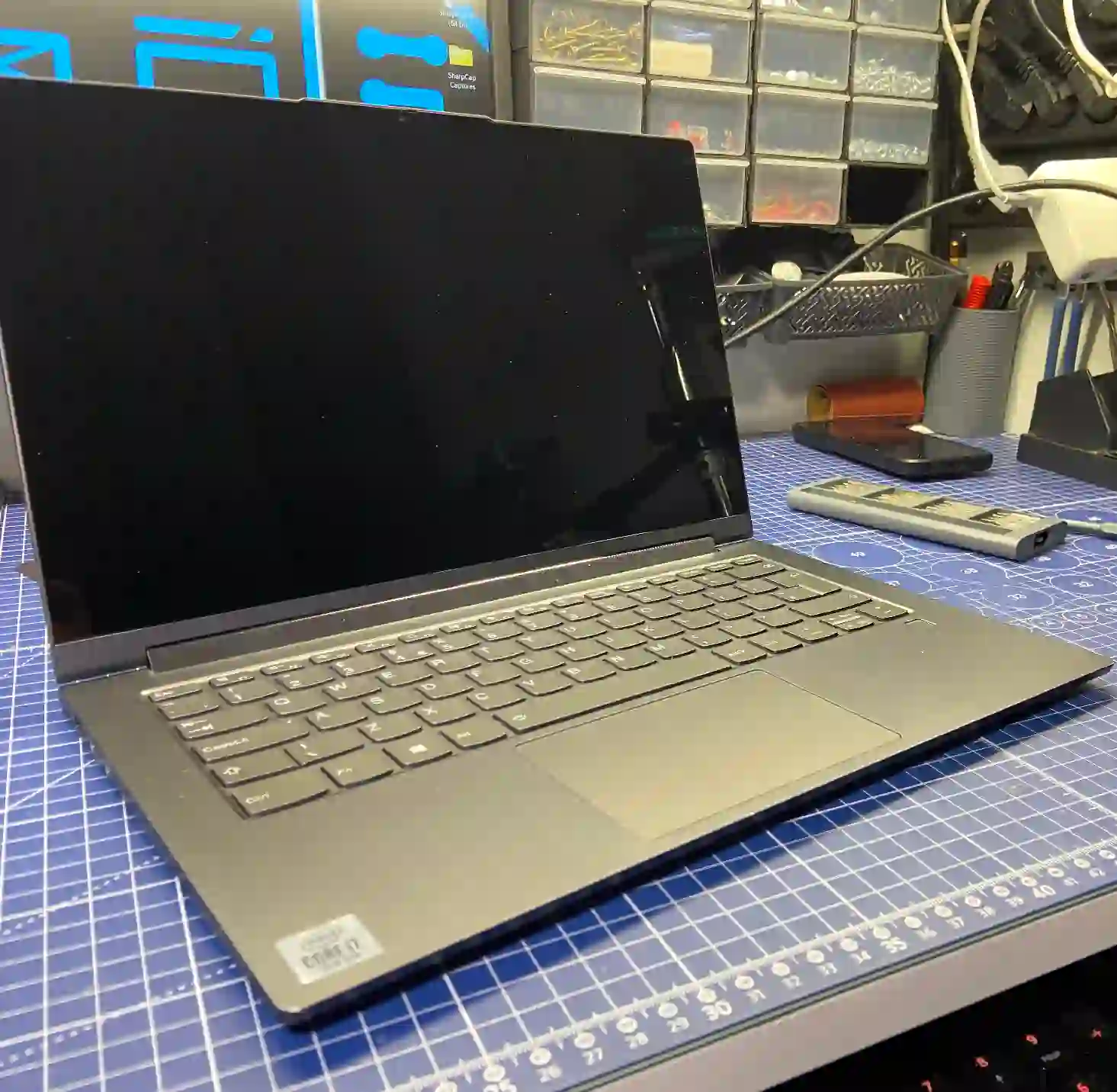
What we do before reinstallation
Before we install the system from scratch, we check the SSD’s condition and measure its speed — sometimes what looks like an update problem is actually a hidden drive issue that simply revealed itself during the update. The sequence we follow is: first installing the appropriate drivers, then a full Windows reinstallation, and only at the end checking the hardware if needed — this minimises the risk that the problem will simply return after reinstallation.
What you can check yourself
- Remember exactly when the problems started — whether immediately after the update or only after a few days.
- Check whether you have a backup of important files — if not, it’s worth making one before you change anything.
- Note down exactly what symptoms are occurring — freezing, restarts, specific error messages.
What NOT to do
- Don’t install more updates 'maybe this will fix it’ — this usually only prolongs the problem.
- Don’t experiment with system repair tools without backing up your data.
- Don’t wait too long if the laptop has started freezing — the longer it works in an unstable state, the greater the risk of data loss.
Customers often want us to „fix” the system without reinstalling, because they’re worried about losing data or settings. We understand that, but let’s be honest: it rarely works, and reinstalling whilst keeping your data is both faster and more reliable.
Apenfix technician
How we do it
1. Checking the drive
We measure the speed and condition of the SSD to rule out any hidden hardware issues.
2. Securing your data
If possible, we back up important files before reinstalling the system.
3. Installing the system and drivers
We install Windows 11 in your chosen language version with a full set of drivers, ready to use.
4. Verifying the licence and stability
We check the licence key in the BIOS and test system stability before handing back your laptop.
Initial inspection is always free. Extended diagnostics (1–3 working days) is free if you decide to go ahead with the repair, and only charged if you decline — we tell you the price upfront.
Laptop repair after Windows 11 update — we cover all of Warsaw
We accept laptops with problems after updates from customers in every district of Warsaw — Śródmieście, Wola, Mokotów, Ochota, Żoliborz, Bemowo, Bielany, Ursynów, Praga-Południe, Praga-Północ, Targówek, Białołęka, Wawer, Włochy, Ursus, Wilanów, Rembertów and Wesoła — as well as from the surrounding areas.
We have more than one location in convenient parts of Warsaw, so getting to us is quick and easy wherever you live or work. Our current service point addresses are listed further down this page.
Why Apenfix
Frequently asked questions
Will I lose my data during reinstallation?
If the laptop still boots, we try to back up your data before reinstalling. If it no longer boots, it depends on the condition of the drive.
Can you roll back just the update itself?
Theoretically yes, but in practice it very rarely restores full system stability — that’s why we usually recommend a reinstallation.
How long does a full reinstallation with driver installation take?
It usually fits within the standard extended diagnostics timeframe, which is 1–3 working days.
Can the problem come back after reinstallation?
If the cause was solely a corrupted update and not hardware, reinstallation solves the problem permanently.
Is it always the update’s fault if the problem appeared after it?
Usually yes, but sometimes an update merely reveals a pre-existing hardware issue, such as with the drive — that’s why we always check both directions.
The exact cost depends on the scope of work and whether data recovery is necessary. You’ll find current rates in the price list.
Two service points in Warsaw
Visit whichever of our two locations is more convenient for you.
Location 1 — Wolska
Wolska 50A/Lokal 26
01-187 Warszawa
Location 2 — al. Szucha
al. Jana Chrystiana Szucha 1
00-580 Warszawa
See also
- Laptop turns on but won’t boot
- Blue screen (BSOD) — hardware or system
- „No bootable device” message — what to do
- System installation on HP laptops