You see „No bootable device” or „Boot device not found” on a black screen. This is one of the easiest messages to diagnose — and it usually means one specific fault. Before you start searching for solutions online, read this. We’ll check the exact cause during a free inspection in 5–15 minutes.
In short: the „No bootable device” message usually simply means a faulty drive that needs replacing. It’s one of the most straightforward situations we encounter — no lengthy troubleshooting required.
Most common causes — from most to least likely
- Faulty drive — by far the most common cause of this specific error message. The drive stops being recognised as a bootable device.
- Changed BIOS configuration — less common, but it does happen that the boot order no longer points to the correct drive.
- Damaged Windows bootloader — the drive works physically, but it’s missing a valid boot entry.
Most important: what about the data on your drive
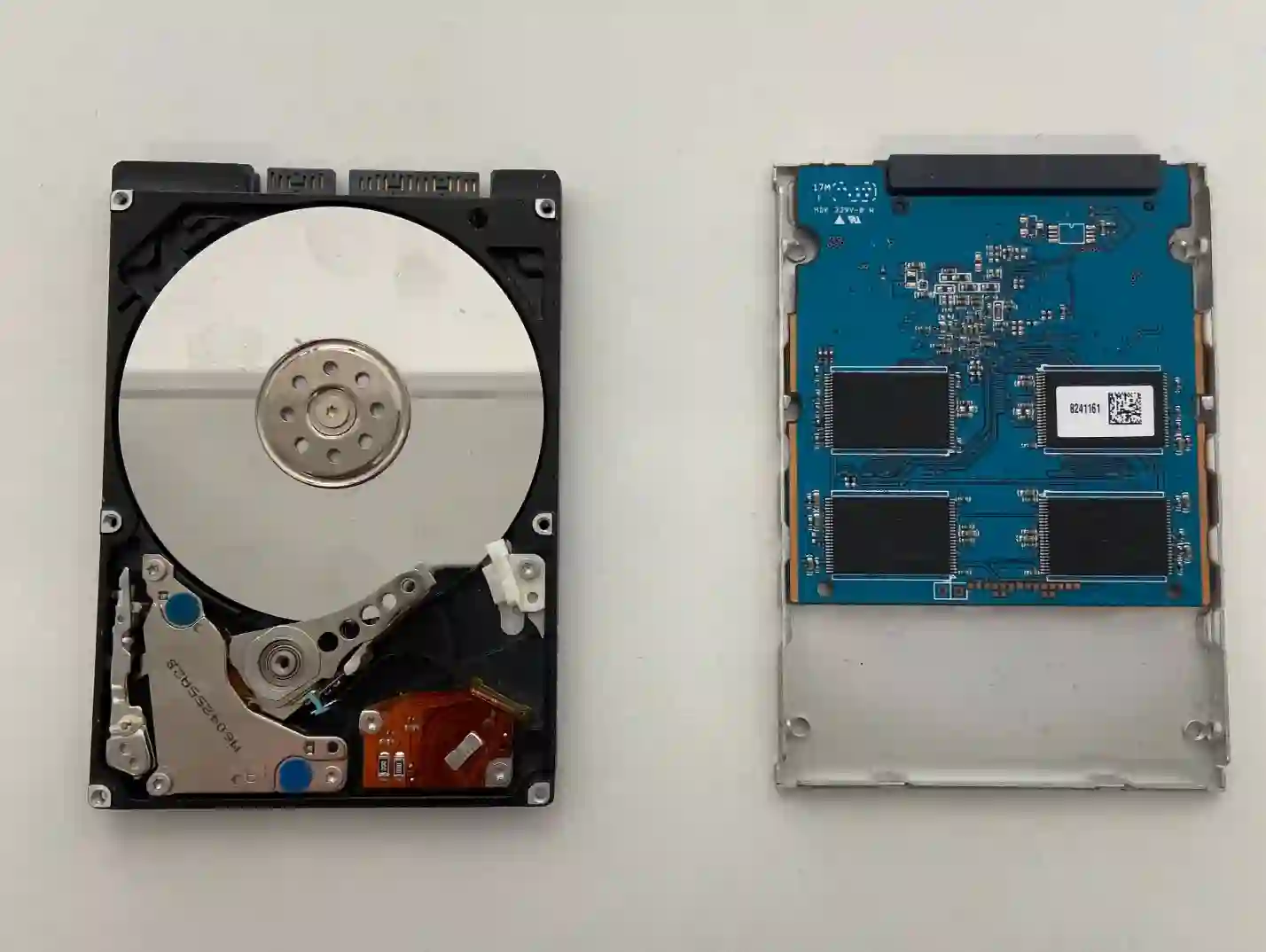
This is the question customers ask most often — and rightly so. If you suspect your drive is failing: do not turn off and restart your laptop repeatedly, and above all do not reinstall the system and do not overwrite anything on the drive. With SSDs, restarting after a failure can cause data to be overwritten and become much harder to recover. Data from HDDs can almost always be recovered. With SSDs that have simply stopped reading, the success rate is usually 70–80%.
What you can check yourself
- Disconnect all connected USB drives and external disks, then restart your laptop — sometimes they’re the cause of this message.
- Take a photo of the screen with the error message — the exact text helps with diagnosis.
- Check whether the message appears every time or only occasionally.
What NOT to do
- Don’t reinstall the system — if you want to recover your data, that’s the worst possible decision.
- Don’t keep restarting your laptop hoping „maybe it’ll work eventually”.
- Don’t try replacing the drive yourself without a diagnosis first — it’s worth confirming that’s actually the cause.
„No bootable device” is one of those messages where diagnosis takes us literally a moment. In the vast majority of cases, it’s simply a drive that needs replacing.
Apenfix technician
How we diagnose it
1. Checking drive visibility
We check whether the drive is detected by the BIOS and other diagnostic tools.
2. Drive speed and health test
If the drive is visible, we measure its speed — below normal means a clear problem with the storage device.
3. Assessing data recovery options
If the drive is damaged, we immediately assess the chances of data recovery before any further intervention.
4. Drive replacement and system installation
After replacing the drive, we install the operating system and all drivers as a turnkey service.
Initial diagnostics are always free. Extended diagnostics (1–3 working days) are free if you proceed with the repair, and charged only if you decline — we quote the price upfront.
Laptop repair for No bootable device message — we cover all of Warsaw
We accept laptops with this message from customers in every district of Warsaw — Śródmieście, Wola, Mokotów, Ochota, Żoliborz, Bemowo, Bielany, Ursynów, Praga-Południe, Praga-Północ, Targówek, Białołęka, Wawer, Włochy, Ursus, Wilanów, Rembertów and Wesoła — as well as from the surrounding areas.
We have more than one location in convenient parts of Warsaw, so getting to us is quick and easy wherever you live or work. Our current service point addresses are listed further down this page.
Why Apenfix
Frequently asked questions
Does 'No bootable device’ always mean the drive needs replacing?
Usually yes, but not always — sometimes it’s enough to correct the boot order in BIOS or repair the system bootloader. Diagnostics will show which case it is.
Can I recover data if the drive is damaged?
In most cases yes, if you haven’t tampered with the drive beforehand. The chances depend on the type and extent of damage to the storage device.
Can the message appear because of a USB stick?
Very rarely, but yes — a faulty USB stick connected to the laptop can interfere with the boot process. Worth disconnecting it and trying again.
Can this be fixed without replacing the drive?
If the problem actually lies in the BIOS configuration or bootloader, rather than the drive itself — yes. Diagnostics will determine this.
Why did my laptop previously have a BitLocker drive, and now I can’t access the data?
If the drive was encrypted with BitLocker and you don’t have the recovery key, accessing the data is practically impossible — that’s a limitation of the encryption itself, not the repair service.
The exact repair cost depends on what diagnostics reveal. Current rates can be found in the price list — a free inspection always precedes the quote.
Two service points in Warsaw
Visit whichever of our two locations is more convenient for you.
Location 1 — Wolska
Wolska 50A/Lokal 26
01-187 Warszawa
Location 2 — al. Szucha
al. Jana Chrystiana Szucha 1
00-580 Warszawa
See also
- BIOS doesn’t detect the drive
- Laptop turns on but doesn’t start
- Problems after Windows 11 update
- Drive replacement in Dell laptops