You press the power button, the fans spin, the LEDs light up — but the screen stays black or the laptop never reaches the desktop? This isn’t the same as a laptop that doesn’t respond at all. Here the device is alive, the problem is in the next stage of booting. In most cases this can be safely diagnosed and repaired. We’ll do this during a free inspection, which takes 5–15 minutes.
In short: the most common cause of this symptom is a damaged drive — the laptop starts the motherboard and processor, but there’s nothing to load the system from. Before you try anything yourself, bring the laptop in for a free inspection — measuring the current draw immediately shows which direction the problem is going.
Most common causes — from most to least likely
- Damaged drive — by far the most common cause. The drive physically stops responding or starts returning errors, so the system has nothing to boot from.
- BIOS configuration problem — e.g. changed boot order or the BIOS „freezes” at one point during initialisation.
- Damaged Windows boot file — the system is physically on the drive, but the bootloader is corrupted. In this case a full reinstallation is usually needed.
How „won’t turn on” differs from „won’t boot”
This distinction matters for diagnostics. If the laptop doesn’t respond at all — no fans, no LEDs — the problem is usually in the power supply or on the motherboard. If, however, the fans spin, the LEDs light up, and the screen stays black or the logo appears without further progress — this means that the power supply and motherboard are alive, and the problem is further down the chain: drive, BIOS or system.
This is good news, because such a case is usually quicker and cheaper to repair than damage to the motherboard itself.
What you can check yourself
- Check whether the laptop actually shows the manufacturer’s logo or stays on a black screen — this is important information for the technician.
- Disconnect any connected USB drives and external drives, then restart the laptop — sometimes these are what block the boot.
- Pay attention to whether you can hear characteristic beep codes during startup — this is a clue to the cause.
- If the laptop briefly shows a message before freezing — take a photo of the screen with your phone.
What NOT to do
- Don’t reinstall the system 'just to try’ — if the problem is the drive, not the system, you’ll only lose time and data.
- Don’t disassemble the laptop or disconnect the battery yourself.
- Don’t keep starting the laptop repeatedly thinking 'maybe it’ll work eventually’ — if the cause is the drive, repeated attempts won’t change anything.
Customers often say 'the laptop won’t turn on’, when in reality the fans are running and the LEDs are lit. That’s a completely different diagnosis from a dead motherboard — and usually good news for your wallet.
Apenfix technician
How we diagnose this
1. Current draw measurement
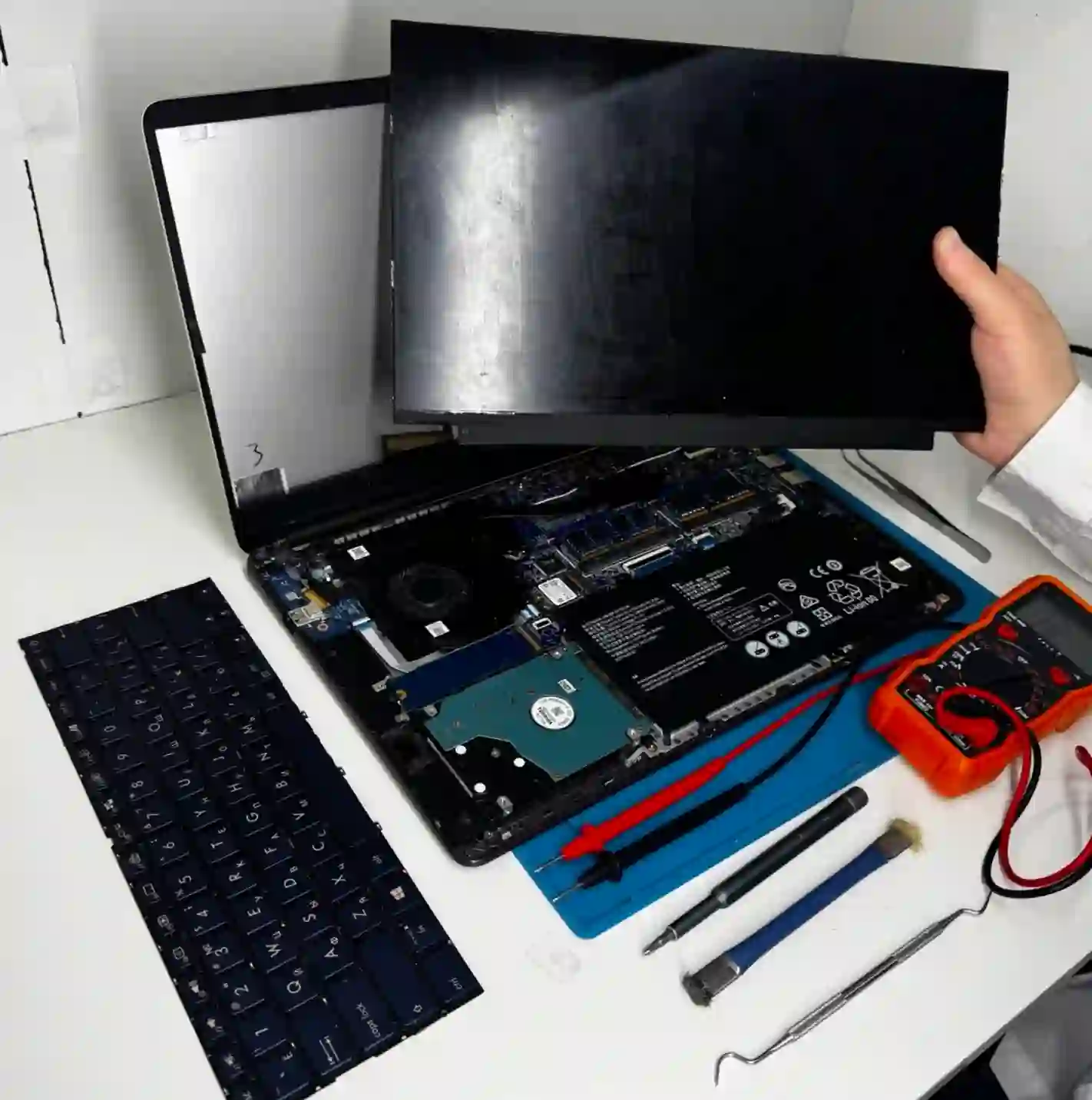
We connect the laptop to a 19 V lab power supply and observe how the current draw changes during start-up — this shows at which stage initialisation stops.
2. Drive check
We measure the drive’s speed and condition — it’s the most common cause of this symptom, so we check it first.
3. BIOS analysis
We check the boot order and settings that might be blocking the system from starting.
4. Bootloader status
If the drive and BIOS are fine, we check the integrity of the Windows boot files.
Initial diagnostics are always free. If the situation requires extended diagnostics (1–3 working days), it’s free if you decide to proceed with the repair, and charged only if you decline — we quote the price upfront.
Laptop won’t start repair — we serve all of Warsaw
We accept laptops that won’t start from clients in every district of Warsaw — Śródmieście, Wola, Mokotów, Ochota, Żoliborz, Bemowo, Bielany, Ursynów, Praga-Południe, Praga-Północ, Targówek, Białołęka, Wawer, Włochy, Ursus, Wilanów, Rembertów and Wesoła — as well as from the surrounding areas.
We have more than one location in convenient parts of Warsaw, so getting to us is quick and easy wherever you live or work. Our current service point addresses are listed further down this page.
Why Apenfix
Frequently asked questions
Is it always the drive?
Not always, but in our practice it’s by far the most common cause of this particular symptom.
Will I lose my data?
If you don’t overwrite anything on the drive and don’t reinstall the system yourself, data can usually be recovered — the exact outcome depends on the drive’s condition.
How long does the repair take?
If extended diagnostics is needed, it takes 1–3 working days. The free inspection itself takes 5–15 minutes.
Can I try to fix this myself?
Some things can be safely checked on your own (see the section above), but taking the laptop apart or tampering with the drive without a diagnosis usually just makes further repair more difficult.
What if it’s the motherboard after all?
It happens less often, but diagnostics will detect it — measuring current draw clearly shows whether the problem goes deeper than the drive or BIOS.
The exact repair cost depends on what the diagnostics reveal. You’ll find current rates in the price list — a free inspection always precedes the quote, so you’re not paying for an unknown.
Two service points in Warsaw
Visit whichever of our two locations is more convenient for you.
Location 1 — Wolska
Wolska 50A/Lokal 26
01-187 Warszawa
Location 2 — al. Szucha
al. Jana Chrystiana Szucha 1
00-580 Warszawa
See also
- Laptop freezes on the manufacturer’s logo
- „No bootable device” message — what to do
- BIOS not detecting drive
- Dell laptop drive replacement